All guidesEverywhere you look
Apple Watch
The watch app comes with Rondia: install Rondia on your iPhone and it appears on a paired Apple Watch (watchOS 11.0 or later). There is nothing to set up. The watch gets its week from the iPhone.
Step 1: Open it
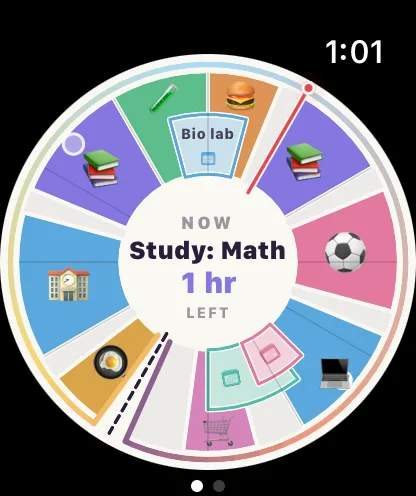
Open Rondia on the watch. The first screen is the dial, filling the face, with the block that is on in the centre.
Step 2: Turn the Digital Crown
The watch dial shows 12 hours, like the phone's. Turn the crown to turn it to earlier or later hours; a label tells you which hours you are looking at. It turns back by itself after a few seconds.
Step 3: See the day as a list
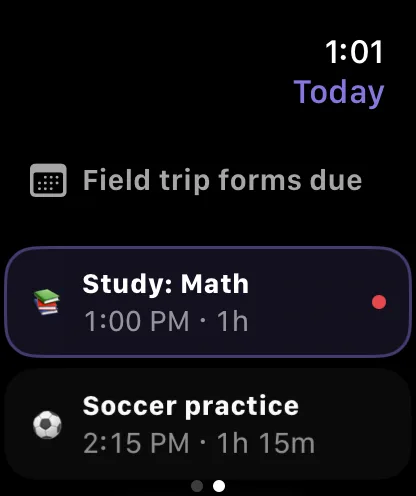
Swipe left for today's blocks in order, with your calendar events between them if you show those.
Step 4: Tick things off
Tap a block in the list to open it. Tap a step to tick it, or tap Mark done. Your iPhone gets the change, and so do your widgets.
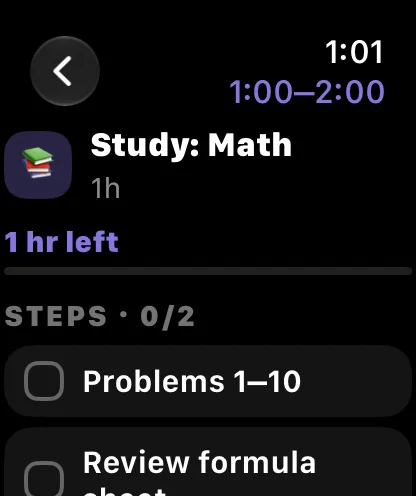
Quicker still: on the dial screen, tap to open the block that is on now.
Step 5: Get a tap on the wrist
With alerts on (see A heads-up before each block), the watch taps your wrist when a block starts. Blocks you have already finished are skipped.
Step 6: Put it on your watch face
Rondia has complications for the watch face and a card for the Smart Stack:
- Circular and corner: a tiny dial.
- Rectangular: the block that is on, a bar, and what is next.
- Inline: "Study: Math until 2:00 PM".
To add one: touch and hold the watch face, tap Edit, swipe to the complications, tap a spot and choose Rondia.
Good to know
- The watch keeps the coming week, so it carries on if your iPhone is out of reach or you have not opened the app for a few days.
- The watch is part of the membership. After the free week without one, it pauses along with the widgets.