All guidesEvery day
Move things around
No day goes to plan. In Rondia you fix the plan with a finger, and the rest of the day rearranges itself.
Step 1: Drag a block to a new time
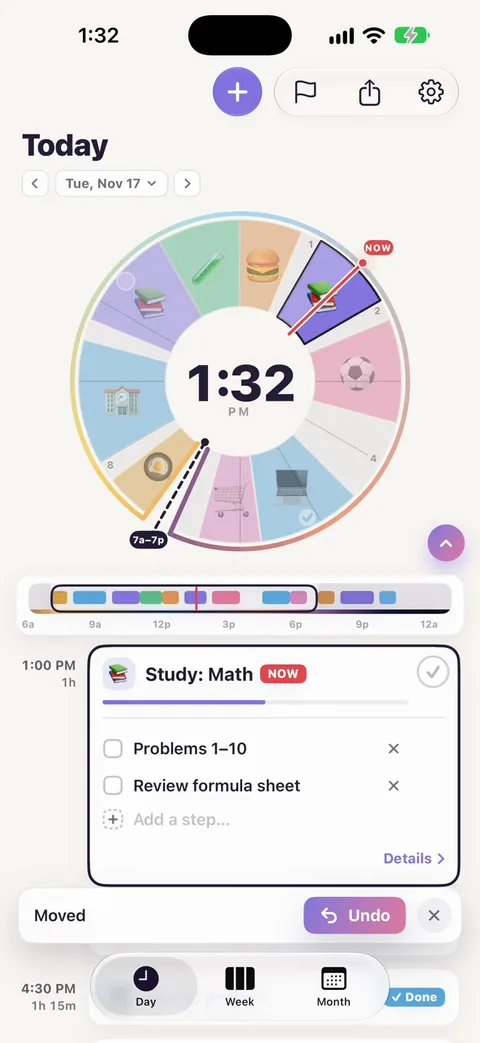
Put your finger on a block on the dial and drag it round the ring. A small label shows its new times as you go, and you feel a tick every 5 minutes. Let go where you want it.
The block keeps its length. Only its time changes.
Step 2: Watch the neighbours make room
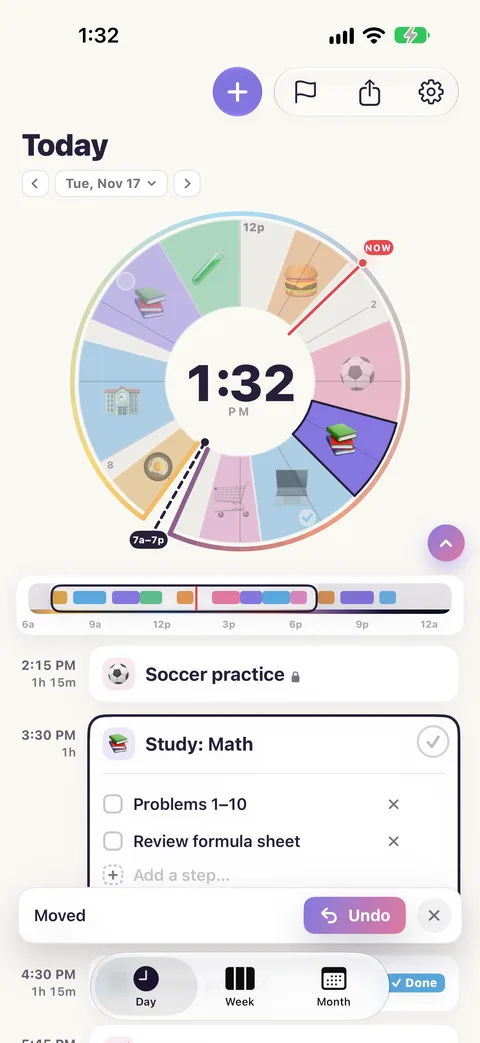
If you drag a block into another one, the other one moves along, and so does the one after it if it has to. Blocks never overlap and never swap places, and each keeps its length. You are pushing the rest of the day later, or earlier, the way it really happens when something runs over.
Step 3: Drag an edge to change how long
Put your finger on the edge between two blocks and drag. One block grows and the other shrinks. This is how "lunch ran 15 minutes into study time" looks on the dial.
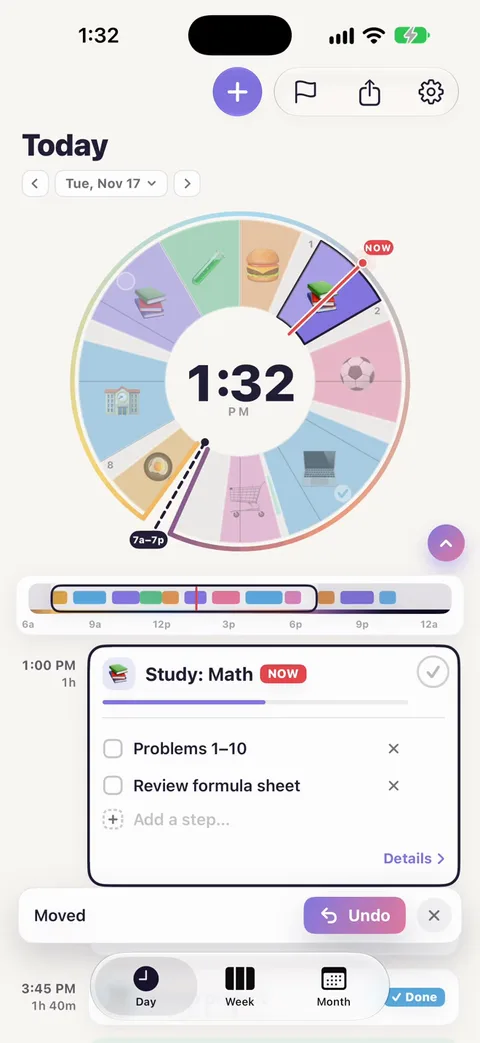
A block can be as short as 5 minutes.
Step 4: Undo
After any drag, a message appears at the bottom: Moved · Undo. Tap Undo and the whole day goes back to how it was. The same works after deleting a block.
Step 5: Fix the things that cannot move
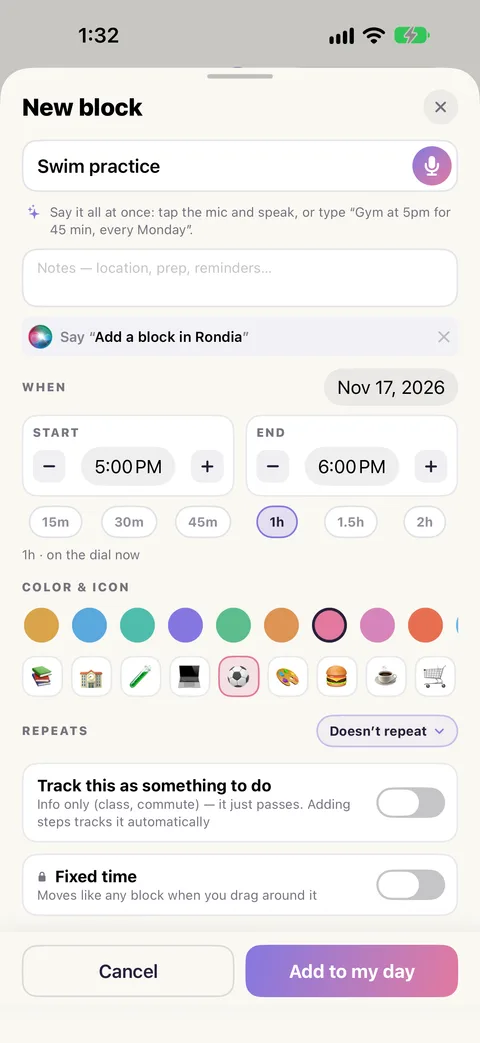
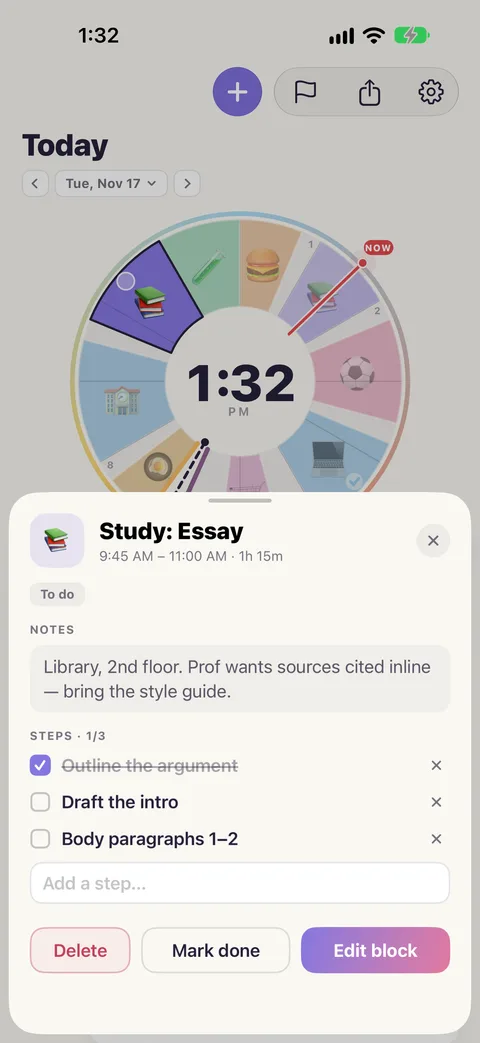
Some things start when they start: a class, a lesson, a game. Open the block (tap it, then Details, then the pencil) and switch on Fixed time.
A fixed block shows a small lock after its name in the list. Now when you drag other blocks, they stop at its edge or hop to its far side. Nothing can push it, and dragging it does nothing.
Step 6: About breaks
When two blocks end up less than 15 minutes apart, Rondia fills the gap with a pale break, so you have time to get from one to the other. Push blocks together and the break stays between them.
- Do not want a particular break? Tap it in the list and remove it. Rondia will not put it back.
- Do not want breaks at all? ⚙ Settings › Views › Auto breaks.
Step 7: Change a block's details instead
Dragging is for "about there". For exact times, tap the block, tap Details, then the pencil to edit. Start and End can be typed or nudged by 5 minutes.
If nothing moves
- The block is Fixed time (it has a lock).
- The day is too full for everything to fit. Shorten or remove something first.
- The free week has ended and there is no membership: the plan is view-only. See pricing.