All guidesEvery day
Things that repeat
Most of a week is the same as last week: school, practice, dinner. Set those up once and every week starts already planned.
Step 1: Make a block repeat
In the New block form (or when editing a block), find Repeats and tap Doesn't repeat. Pick the days: tap each weekday, or use the shortcuts Weekdays and Daily.
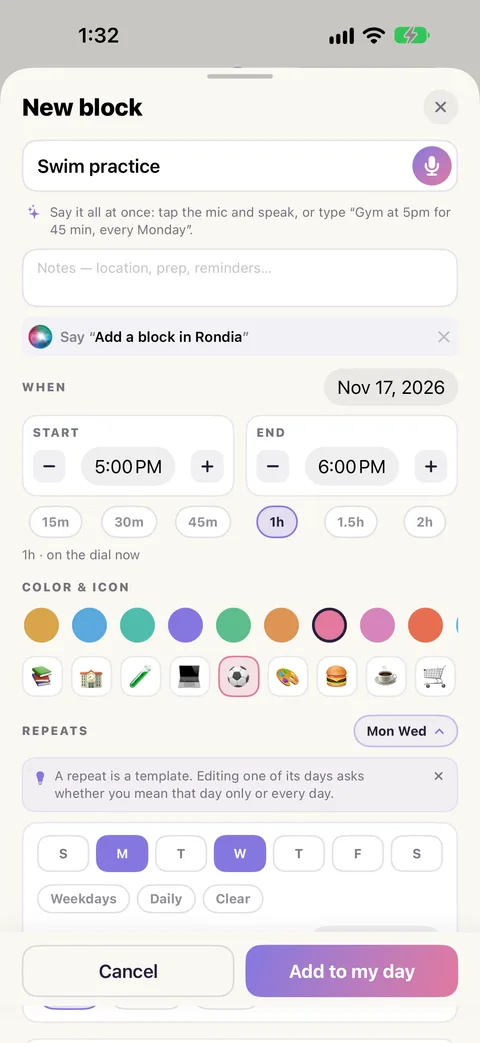
Or put it in the one-line box: "Swim every Tuesday and Thursday at 4 for an hour".
Step 2: Know what a repeat is
A repeating block is a template: "this happens every Monday at 4". Rondia puts a copy on each Monday. Each copy is that day's own: ticking Monday's steps does nothing to next Monday's.
Step 3: Change one day
This Wednesday's practice is cancelled, or moved to 5. Go to that day and move, edit or delete the block as usual. When you save, Rondia asks which you mean:
- This day only changes just that one day. Every other week stays as it was.
- All days from here on changes the template from that day forward. Earlier days are never touched.
Dragging a repeating block on the dial changes that day only, without asking.
Step 4: Set when it starts and ends
A term ends, a season ends. In the Repeats section, set Starts and Last day and the block stops appearing after that date. Nothing in the past changes.
Step 5: Stop a repeat
Open the block, tap delete, and choose All days from here on. It disappears from that day forward. The days already behind you keep it, with whatever was ticked.
A school week in ten minutes
- Add "School" as a Fixed time block, repeating on Weekdays.
- Add each after-school thing on its own days: "Soccer every Tue and Thu at 4 for 75 min".
- Add "Homework" on weekdays, with Track this as something to do switched on.
- Add dinner and bedtime as Daily.
Now each morning opens on a day that is already drawn, and only the changes need a finger.