All guidesStart here
How to read the dial
The dial is a clock that shows your plans instead of hands. Once you see that, the rest follows.
Step 1: It is a clock face
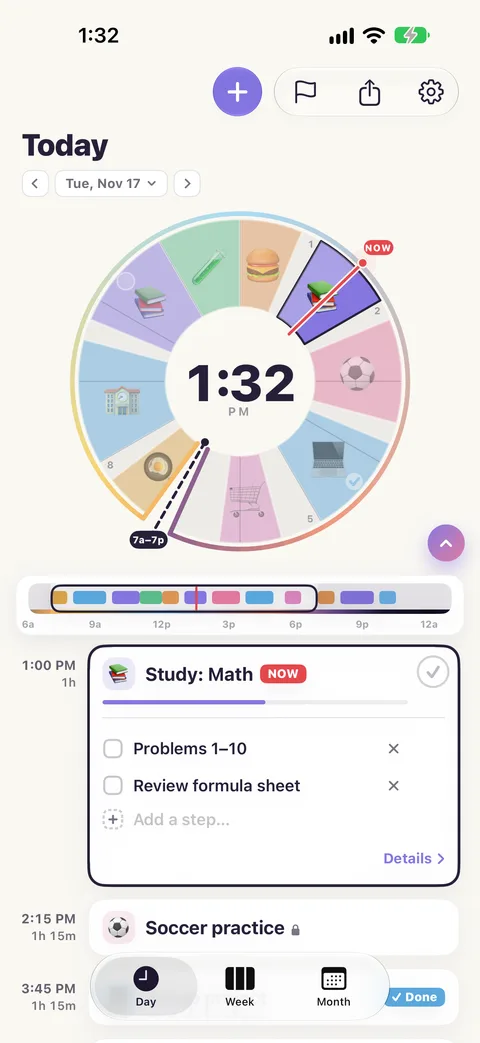
Twelve at the top, three on the right, six at the bottom, nine on the left, like any clock. A block that starts at 3 starts where the 3 is. The small numbers just inside the rim name the hours that are free.
Step 2: Each colour is a block
A block is a part of your day: class, lunch, practice. It covers the dial from the time it starts to the time it ends, so a long block is a wide slice and a short one is thin. Its icon sits in the middle of it.
The grey parts are free time. When two blocks are less than 15 minutes apart, Rondia fills the gap with a pale, thinner slice instead: a break, a few minutes to get from one thing to the next. The day in these pictures has none. Moving things says more about them.
Step 3: The red line is now
The red line, marked NOW, sits at the current time and moves with the clock. The block it is crossing turns pale behind the line and stays bright ahead of it, so you can see how much of that block is left. Everything after the line is the day you still have.
Step 4: The dial shows 12 hours. The bar shows all 24.
A clock face only has room for 12 hours, so the dial shows 12 at a time: 7 in the morning to 7 in the evening when you first open it. The small gap in the ring, with the dashed line, is where those 12 hours begin and end.
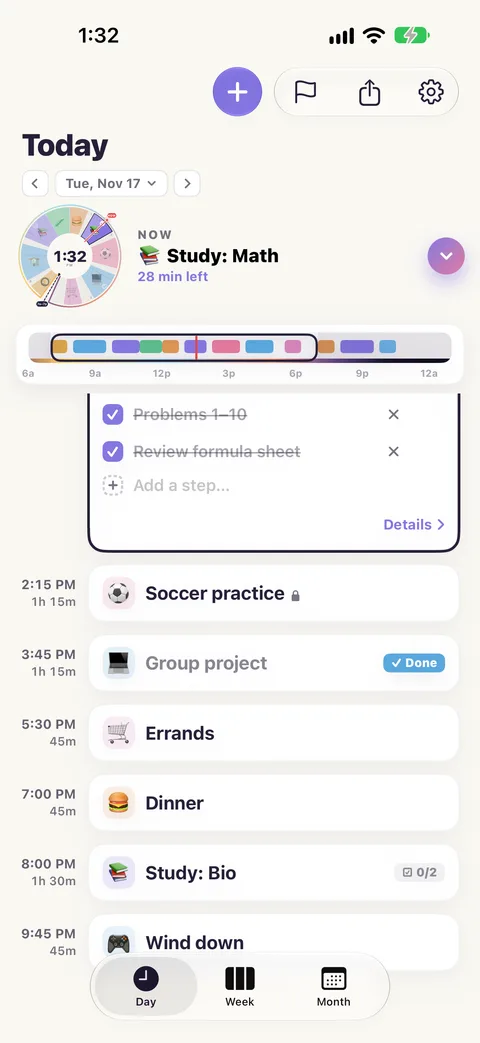
Under the dial is the hours bar: your whole day, midnight to midnight, in one strip. The frame on it marks the 12 hours the dial is showing. Slide the frame to turn the dial to earlier or later hours, for an early start or a late night.
Step 5: The centre tells you three things
Tap the middle of the dial to change what it shows:
The time.
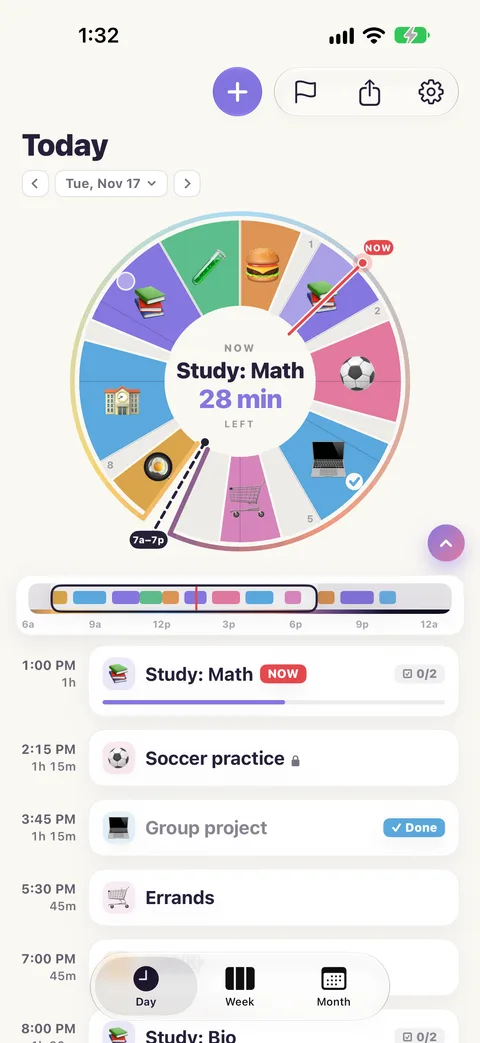
What is on now, and how many minutes it has left.
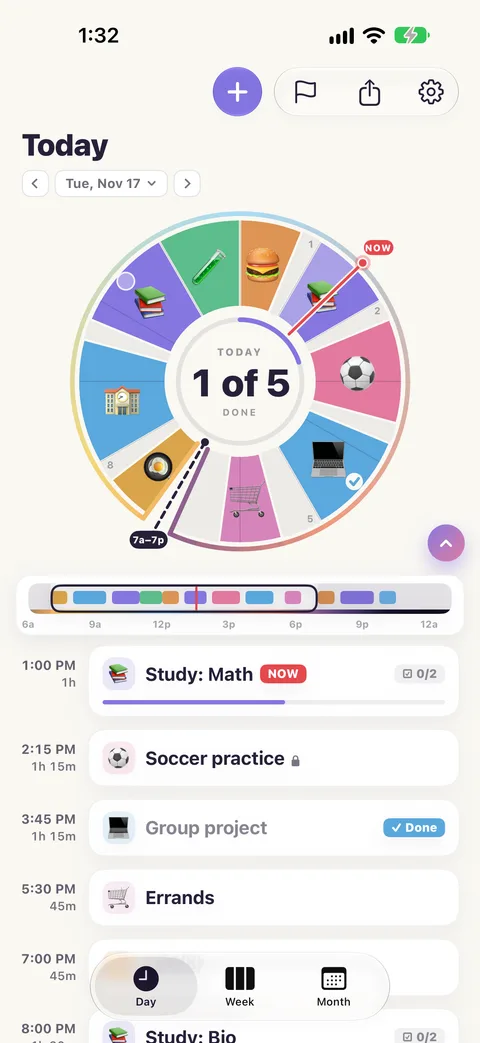
Today's count: how many of the things you meant to do are done.
Step 6: The list is the same day, in words
Under the hours bar is your day as a list, top to bottom. Tap a block on the dial and its card opens in the list. Tap a card and its block lights up on the dial.
Want more list and less dial? Tap the small round arrow at the dial's corner to shrink the dial. Tap it again to bring the dial back.
Step 7: Turn the phone
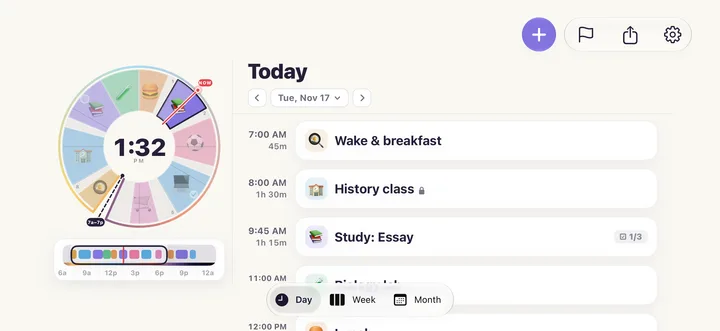
On its side, the dial sits beside the list. An iPad held sideways does the same, and so does an iPhone Duo when you open it.