All guidesEverywhere you look
Widgets
A plan you have to open an app to see is a plan you forget. Widgets put the dial where you already look.
Rondia has two kinds: Today for the Home Screen, and Now & next for the Lock Screen.
Home Screen
Step 1: Add it
- Touch and hold an empty spot on your Home Screen until the icons wobble.
- Tap Edit in the top corner, then Add Widget.
- Search for Rondia and tap it.
- Swipe to choose a size and tap Add Widget, then Done.
Step 2: Pick a size
Small is the dial by itself. Its centre shows what is on now, or what is next and when.
Medium is the dial with words beside it: the block that is on, how long it has left, its steps, and what is up next.
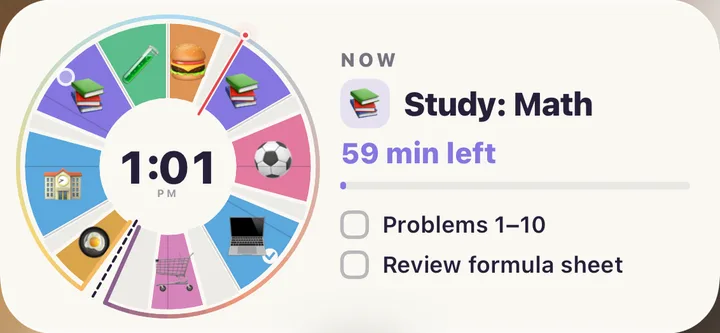
Step 3: Tick a step right there
On the medium widget, tap a step to tick it. The app does not open. The dial and the count update.
Step 4: Tap to jump in
Tap the block on the widget to open Rondia on that block's card. When nothing is planned the widget offers Add a block, which opens the New block form.
Lock Screen
Step 1: Add it
- Touch and hold your Lock Screen, then tap Customize and choose the Lock Screen.
- Tap the widget row under the clock.
- Find Rondia and choose a shape.
Step 2: Pick a shape
- Rectangular: the block that is on, a bar that fills as it goes, and what comes after: "Until 2:00 PM · then Soccer practice".
- Circular: a tiny dial.
- Inline (the line above the clock): "Study: Math until 2:00 PM".
The same widgets show in StandBy when the iPhone is charging on its side.
Good to know
- Calendar events show too, if you have turned on Show calendar events. See Rondia and your calendar.
- Dark Mode and tinted Home Screens are followed automatically.
- "Open Rondia" on a widget means the free week is over and there is no membership, or the app has not been opened since you joined. Open Rondia once.
- Hour numbers on the widget's dial follow ⚙ Settings › Views › Show hour numbers.